
On this page
- Download and install
- Sign in
- Run your SERPUPDATE keys
- Rotate the IP, manually or on a timer
- IP location and whitelist
- Use rotating proxies from other providers
- Fix proxy: password-protected to passwordless
- Give every app its own proxy
- Menu, more windows and sharing on your LAN
- Close the window and keep proxies running
- Frequently asked questions
Proxy Tool for Windows
How to use Proxy Tool
Proxy Tool is a free Windows app that runs your SERPUPDATE keys on your machine in one click, rotates the IP from inside the app, turns password-protected proxies into passwordless ones and gives every app its own proxy.
Download and install
Proxy Tool runs on Windows 10 and 11 (64-bit) and is only about 1–2 MB.
- Open the Proxy Tool download page and click Download installer. Prefer no install? Take the Portable (zip), unzip it and run it directly.
- Run the downloaded file. If Windows SmartScreen warns you, click More info, then Run anyway.
- Open Proxy Tool from the Start menu. Every time it opens, it checks for and installs the latest version.
Sign in
The first time it opens, the app shows a sign-in screen. Use the same account you bought your proxies with on proxy.serpupdate.com.
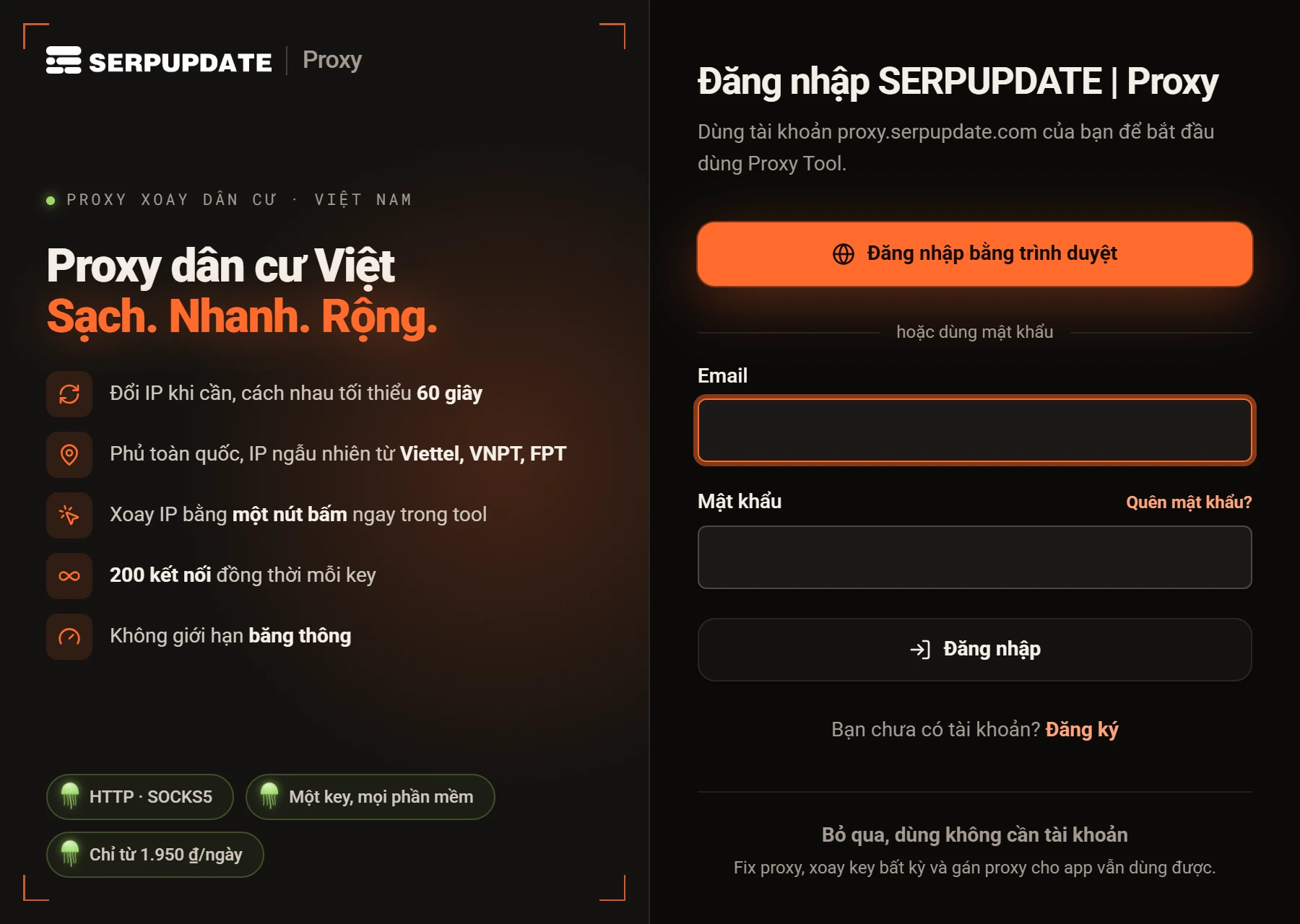
- Sign in with browser ("Đăng nhập bằng trình duyệt", recommended): the app opens your browser, you sign in as on the website (Google works too), and the app picks it up by itself.
- Email and password: type them straight into the app.
- Skip ("Bỏ qua, dùng không cần tài khoản"): Fix proxy, other providers' rotating keys and per-app proxies still work, but you will not see the keys you bought.
The app remembers you, so next time it opens straight in. Signing out (in the menu) stops every proxy that window is running.
Run your SERPUPDATE keys
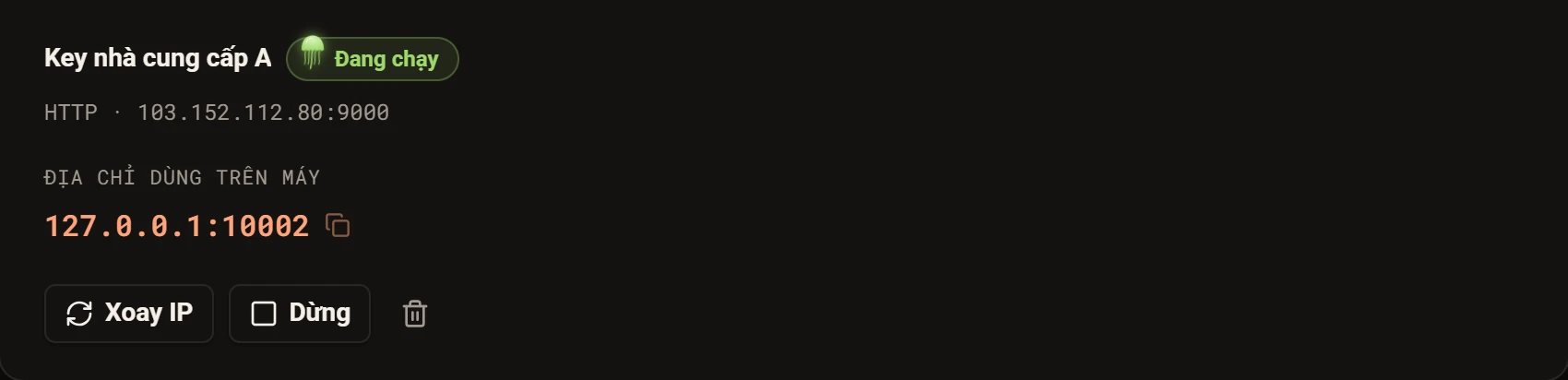
Open the Rotating proxy tab ("Proxy xoay") and choose SERPUPDATE account ("Tài khoản SERPUPDATE"). Every key on your account is listed with its current IP, network and expiry. The list refreshes every minute; click Refresh ("Làm mới") right after buying a key.
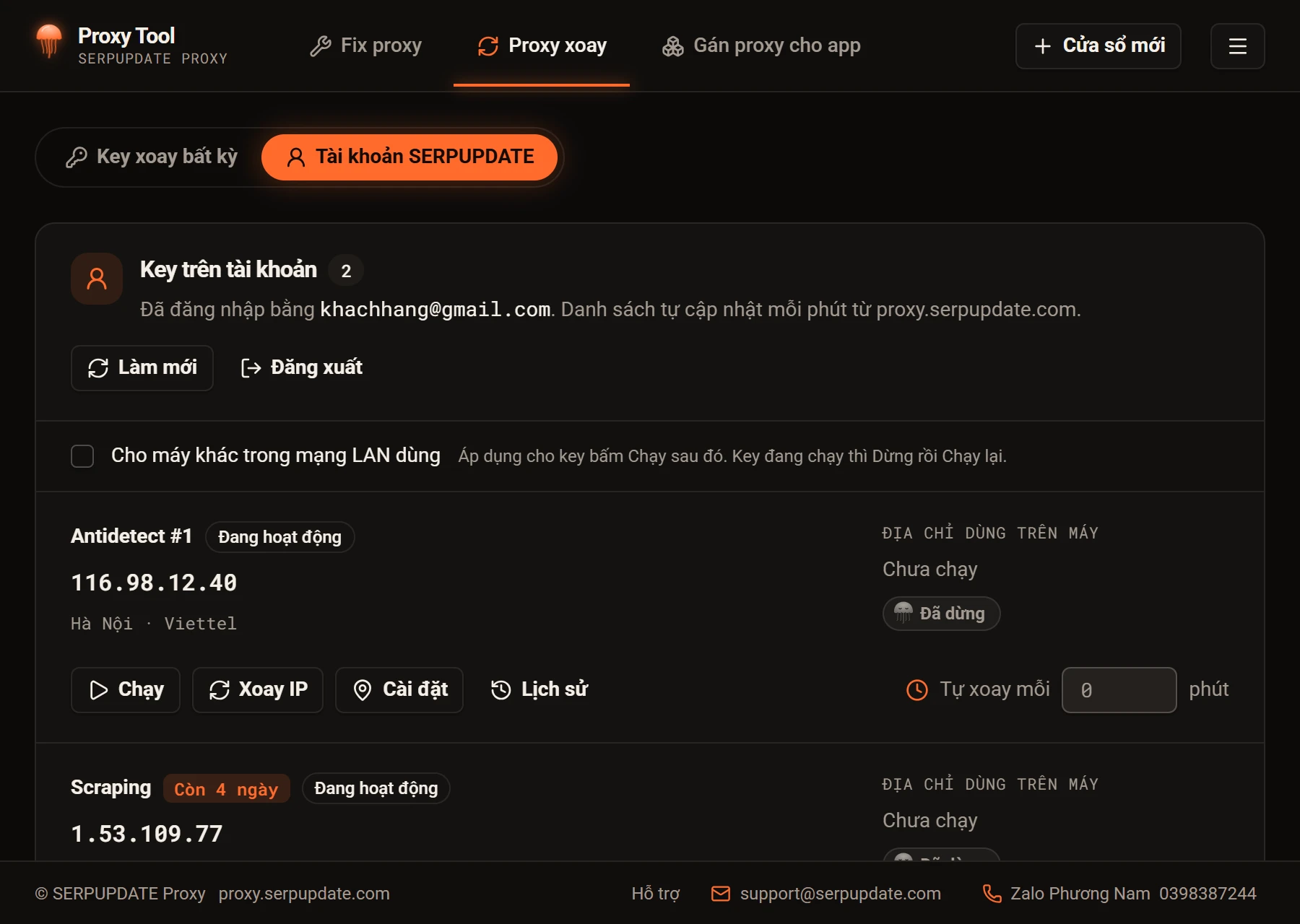
- Click Run ("Chạy") on the key you want.
- The local address box ("Địa chỉ dùng trên máy") shows an address like
127.0.0.1:10001. Click it to copy. - Paste it into your software's proxy settings (antidetect browser, automation tool, emulator…) as HTTP or SOCKS5, either works, with no username or password.
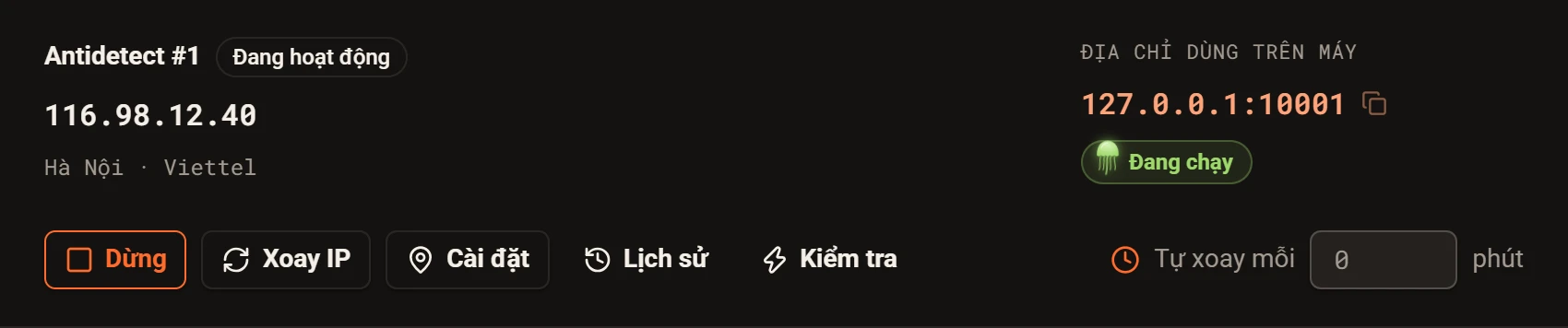
Check ("Kiểm tra") shows the IP you actually exit from and tests for DNS leaks. Stop ("Dừng") when you are done. Each key keeps its port the next time you run it, so your software's settings stay valid.
Rotate the IP, manually or on a timer
- Rotate IP ("Xoay IP"): move to a new IP now. Rotations are at least 60 seconds apart. The
127.0.0.1address does not change, so nothing needs reconfiguring. - Auto-rotate every … minutes ("Tự xoay mỗi … phút"): the app rotates the IP on a schedule (
0turns it off). The app must be open, or hidden in the tray, for this to run. - History ("Lịch sử"): every rotation made from this machine, with the old and new IP.
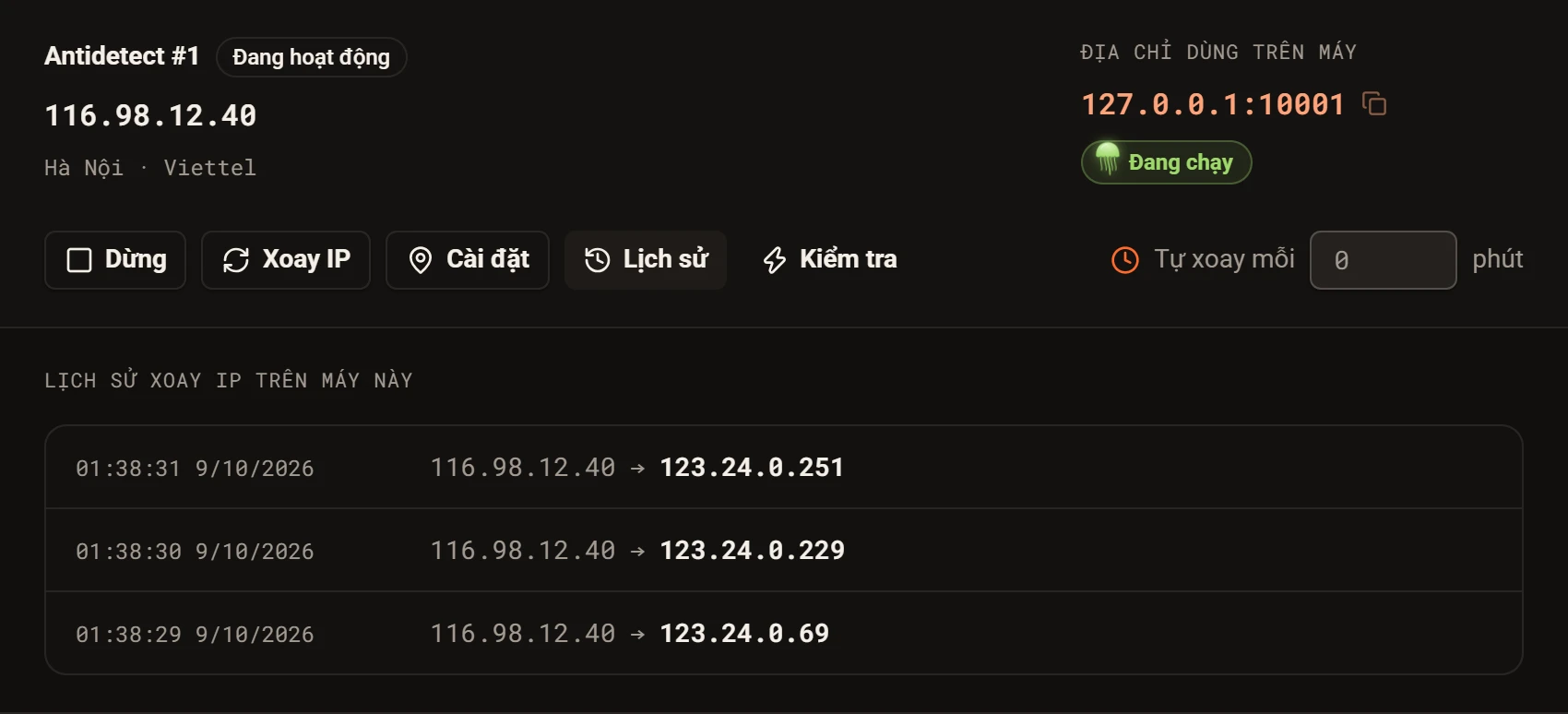
If you never rotate, the system still moves the key to a new IP after at most 30 minutes.
IP location and whitelist
Some keys have an extra Settings button ("Cài đặt") with two parts:
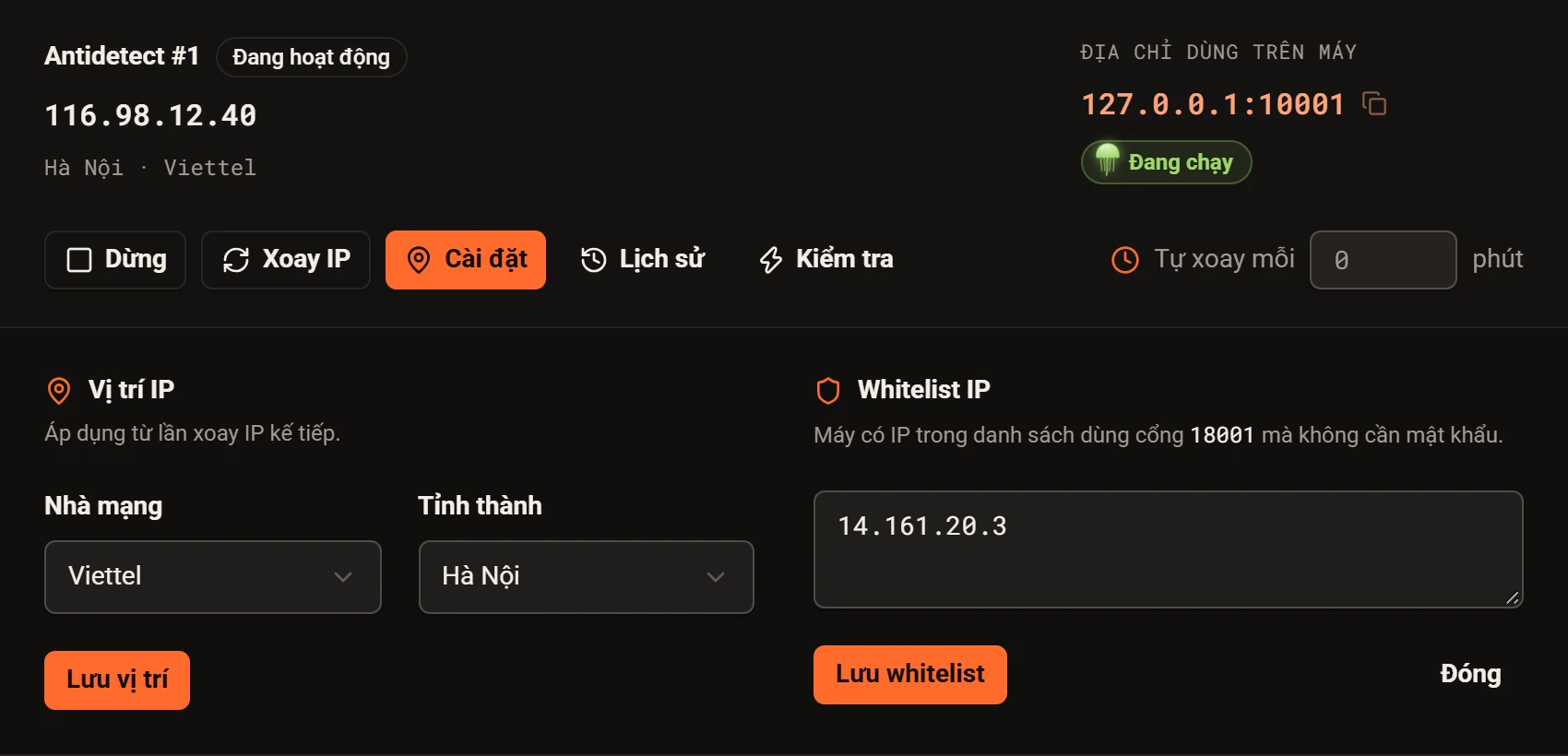
- IP location ("Vị trí IP"): pick a preferred network and province, then Save location ("Lưu vị trí"). It applies from the next rotation.
- IP whitelist: enter up to 20 IPs, one per line, then Save whitelist ("Lưu whitelist"). Machines with those IPs use the dedicated port shown there with no password.
Use rotating proxies from other providers
In the Rotating proxy tab, Any rotating key ("Key xoay bất kỳ") lets you manage rotating proxies bought elsewhere just like your SERPUPDATE keys.
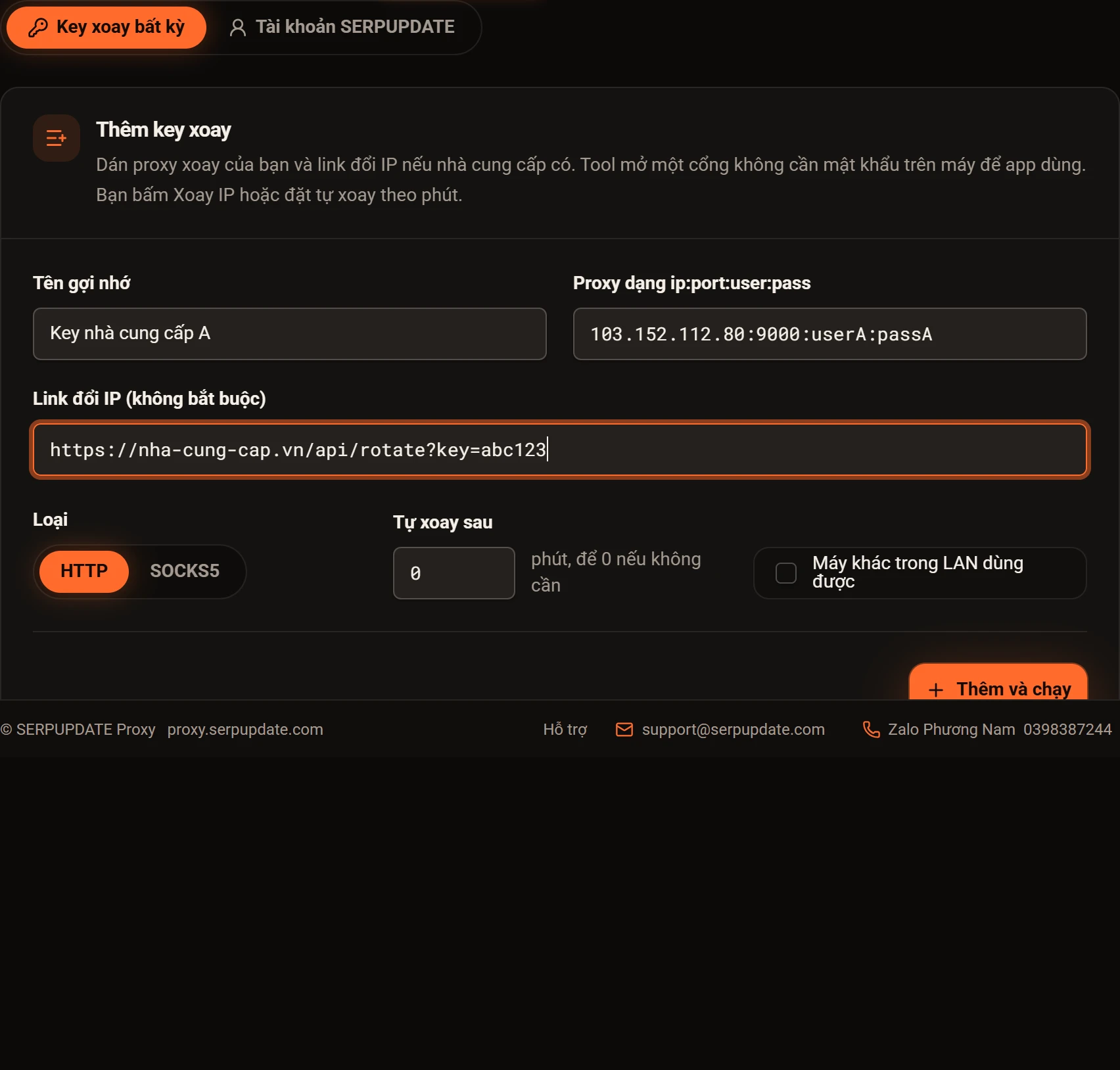
- Enter a Label and the proxy as
ip:port:user:pass. - Paste the provider's Rotate link if they give one (optional). Rotate IP and auto-rotate only work with a link.
- Pick the Type (HTTP or SOCKS5), set Auto-rotate every … minutes if you like, then Add and run ("Thêm và chạy").
Fix proxy: password-protected to passwordless
Many tools and emulators accept only ip:port, with nowhere to type a proxy password. The Fix proxy tab solves that for any proxy, static ones included.
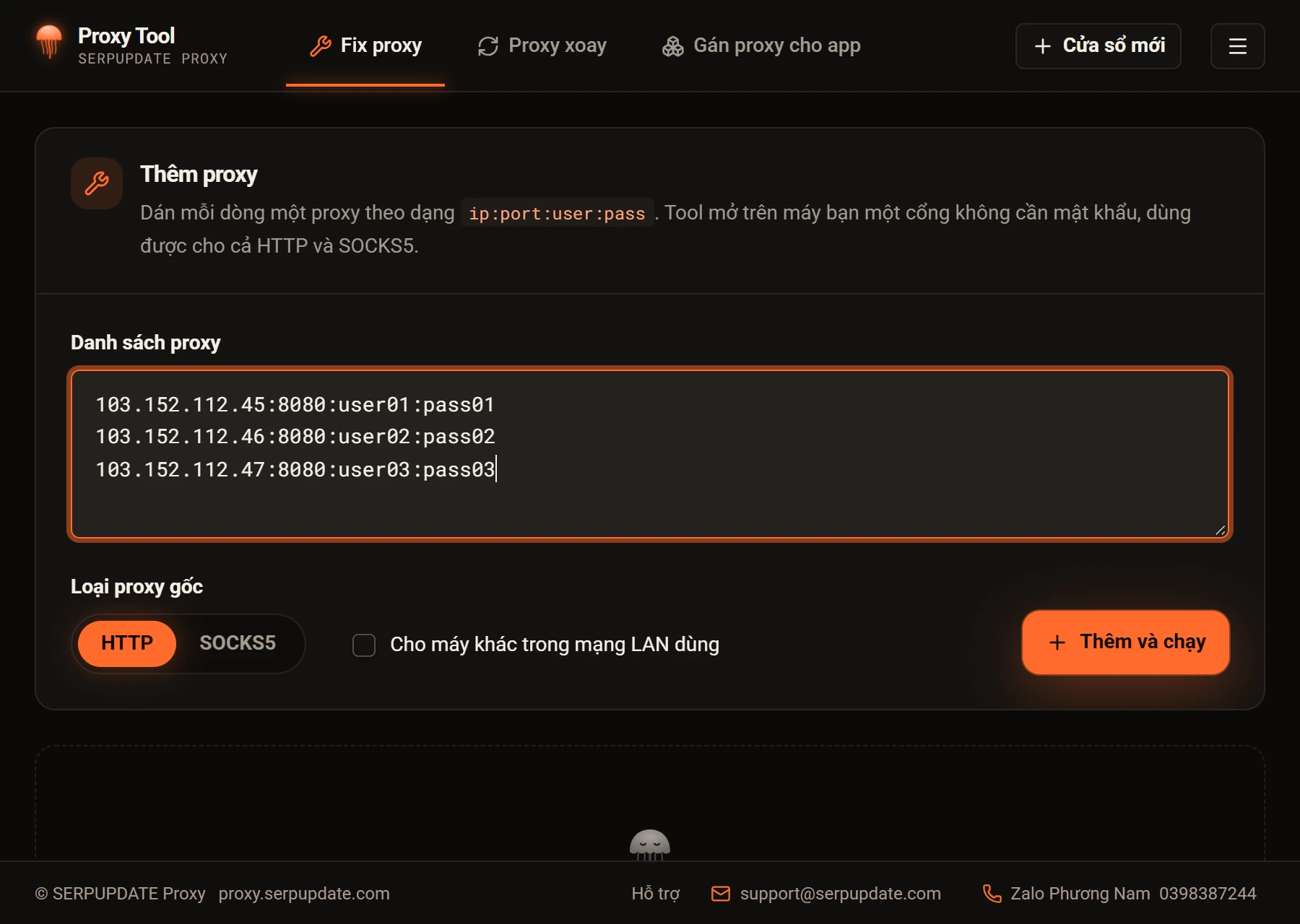
- Paste your proxies, one per line, as
ip:port:user:pass. - Pick the Upstream type ("Loại proxy gốc"), HTTP or SOCKS5, matching the proxies you pasted.
- Click Add and run. Each proxy gets a passwordless local address
127.0.0.1:PORTthat accepts both HTTP and SOCKS5.
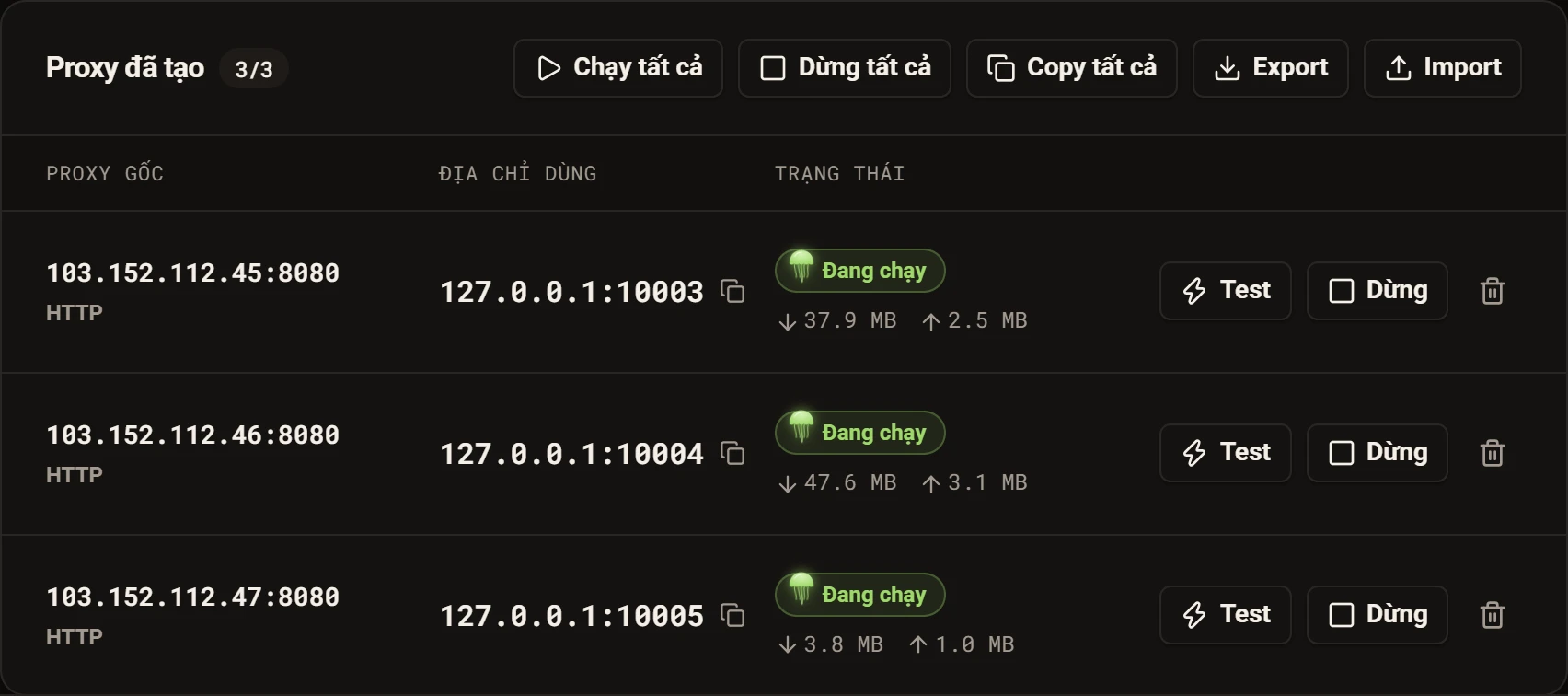
- Click an address to copy it, or Copy all for the whole list.
- Test checks the IP and latency through the proxy; Stop, Run all and Stop all switch them; the bin icon deletes one.
- Export / Import save and reload the list, handy for moving to another machine.
Give every app its own proxy
The Assign proxy to app tab ("Gán proxy cho app") gives each app, emulator or browser its own proxy, so your accounts never share an IP. There are two ways.
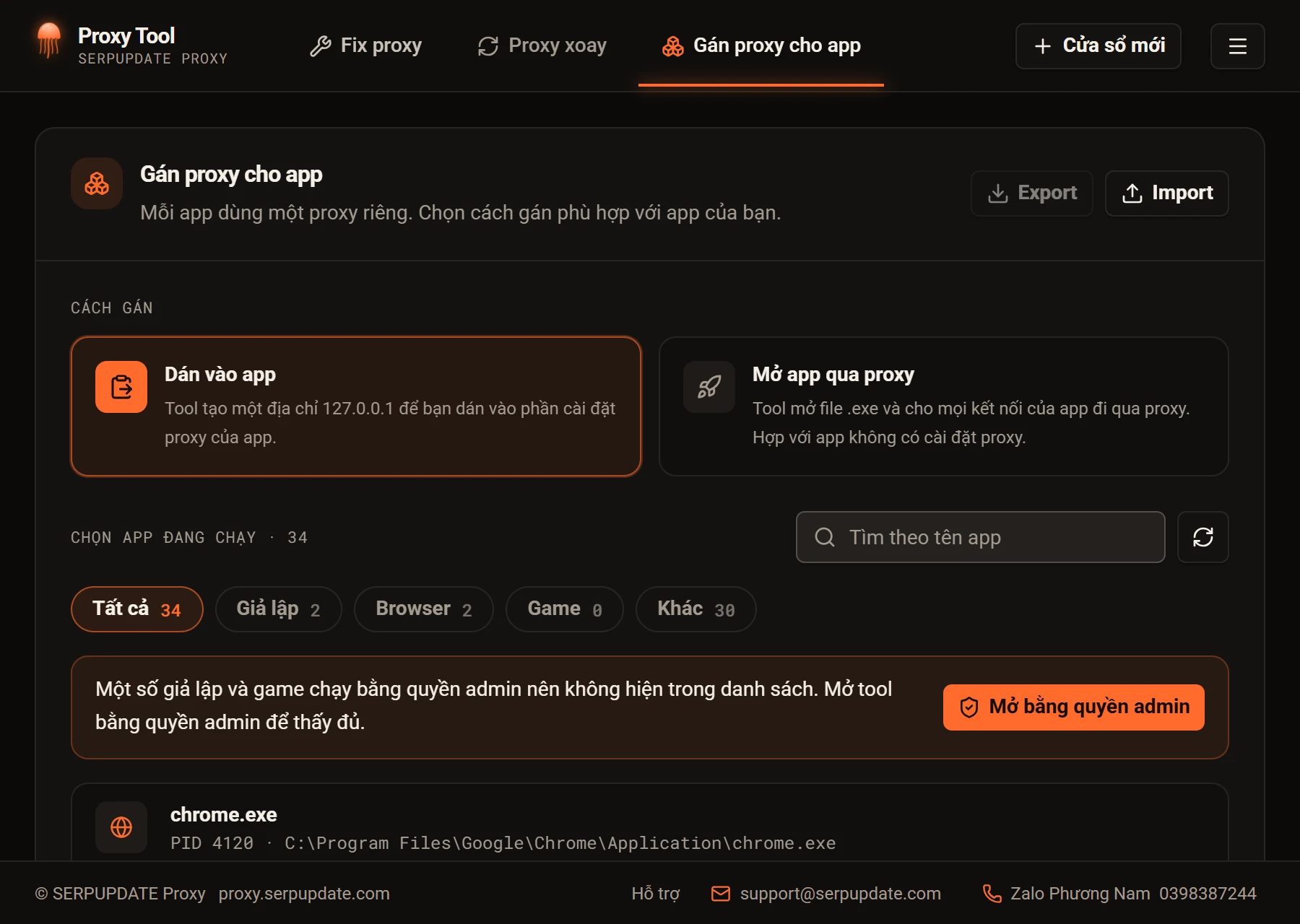
- Way 1, Paste into app ("Dán vào app"): pick the app from the running list (filter by emulator, browser or game, or search by name), paste a proxy
ip:port:user:pass, pick its type and click Add and run. - The app appears under Apps with a proxy ("App đã gán proxy") with a
127.0.0.1address. Copy it into the app's proxy settings.

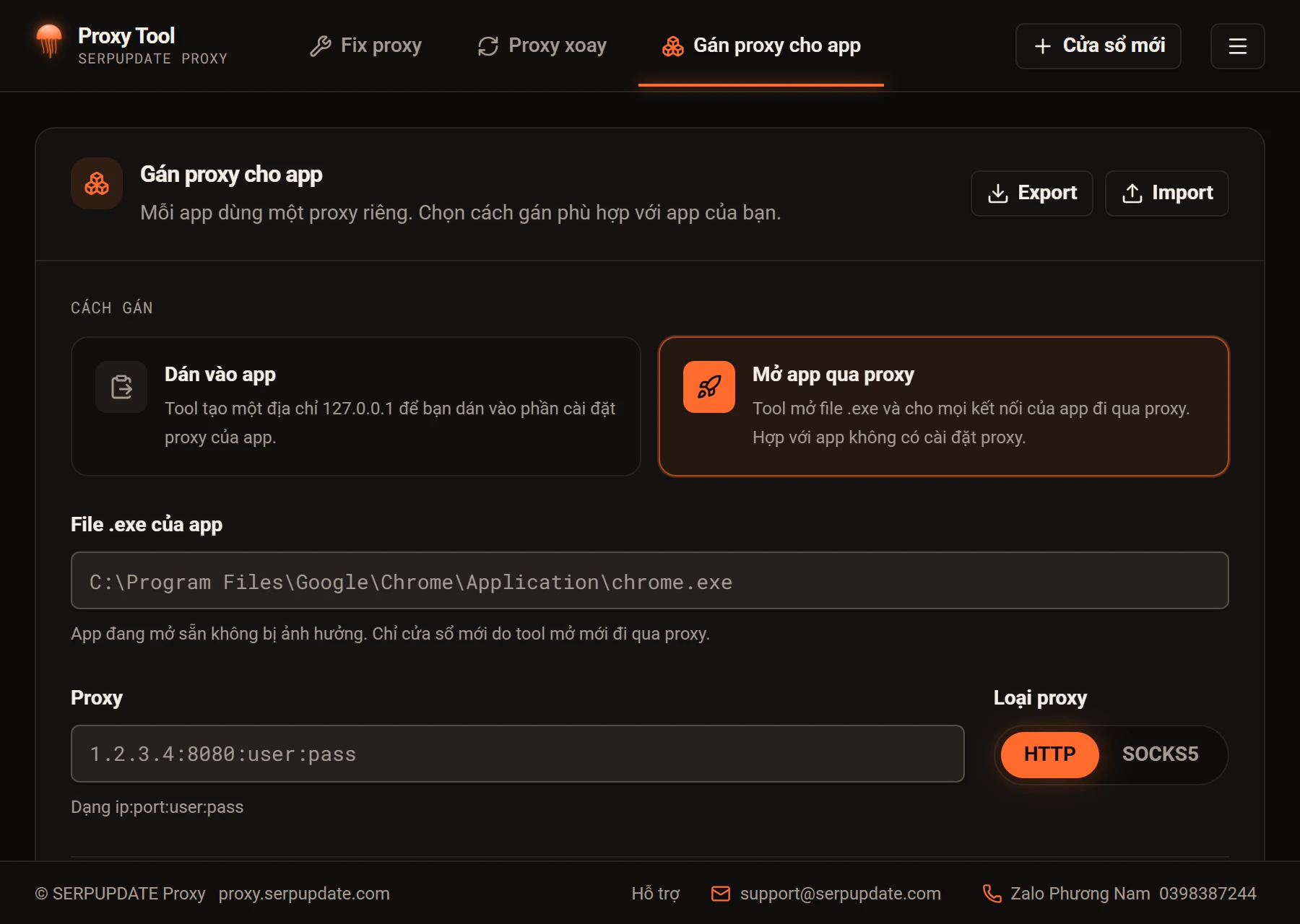
Way 2, Launch through proxy ("Mở app qua proxy"): for apps with no proxy settings. Enter the path to the .exe, paste a proxy and click Add and launch app. The tool starts the app and routes all of its traffic through the proxy. Windows of the app that were already open are not affected; only the one the tool opens uses the proxy.
Menu, more windows and sharing on your LAN
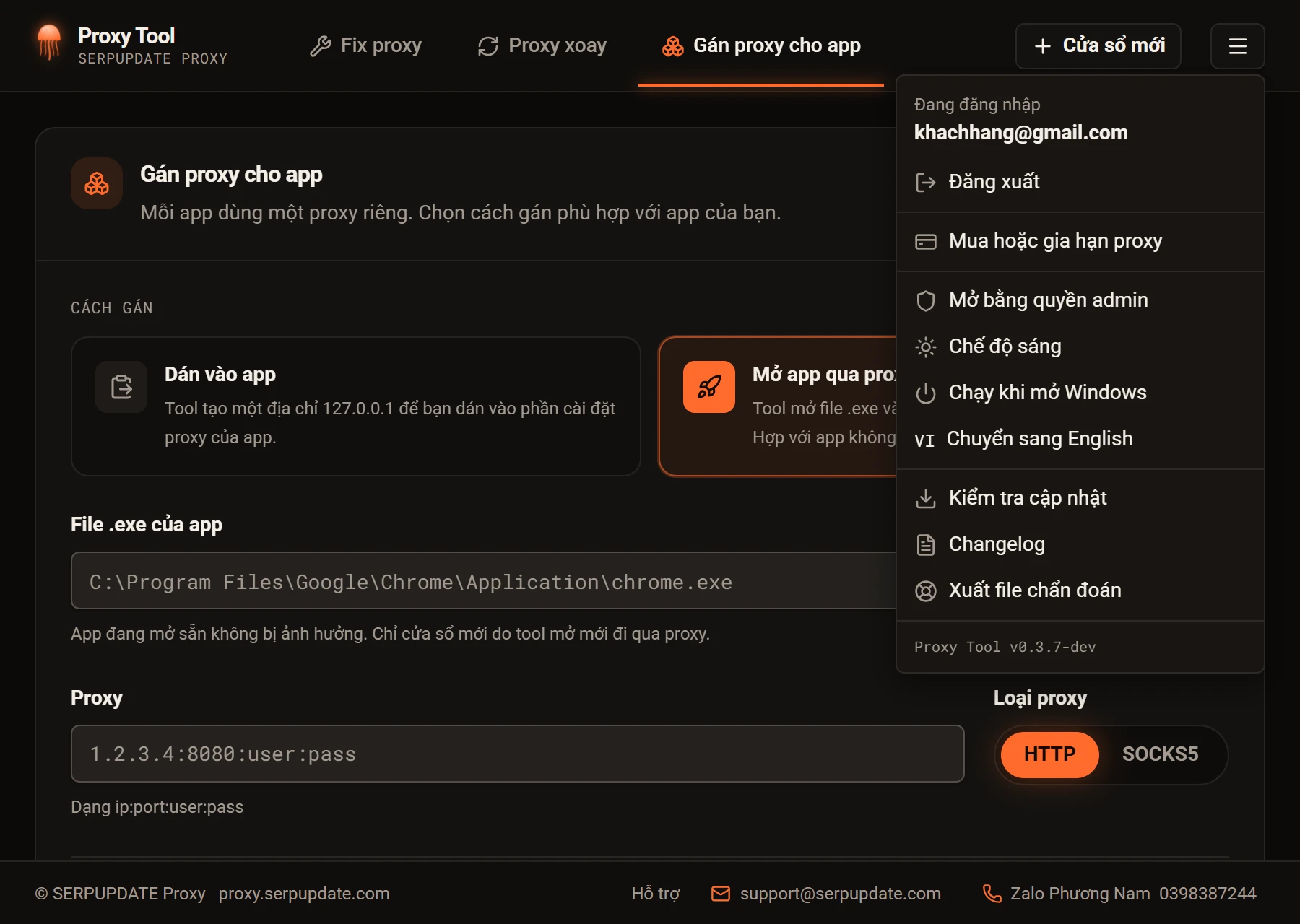
- New window ("Cửa sổ mới"): opens another independent window with its own lists, handy for separating groups of accounts. A window's proxies stop when that window closes.
- Buy or renew proxy: opens My proxies on the website.
- Start with Windows: opens the tool when the computer starts, for machines that run around the clock.
- Check for updates and Changelog: see and install new versions.
- Export diagnostics: creates a file to send along when you need technical support.
- Switch between light and dark, and between Vietnamese and English.
The Share with other machines on LAN box (in all three tabs) opens the proxy to machines on your local network: the address changes from 127.0.0.1 to your computer's LAN IP. The first time, Windows Firewall asks for permission; click Allow. Only turn it on in a network you trust.
Close the window and keep proxies running
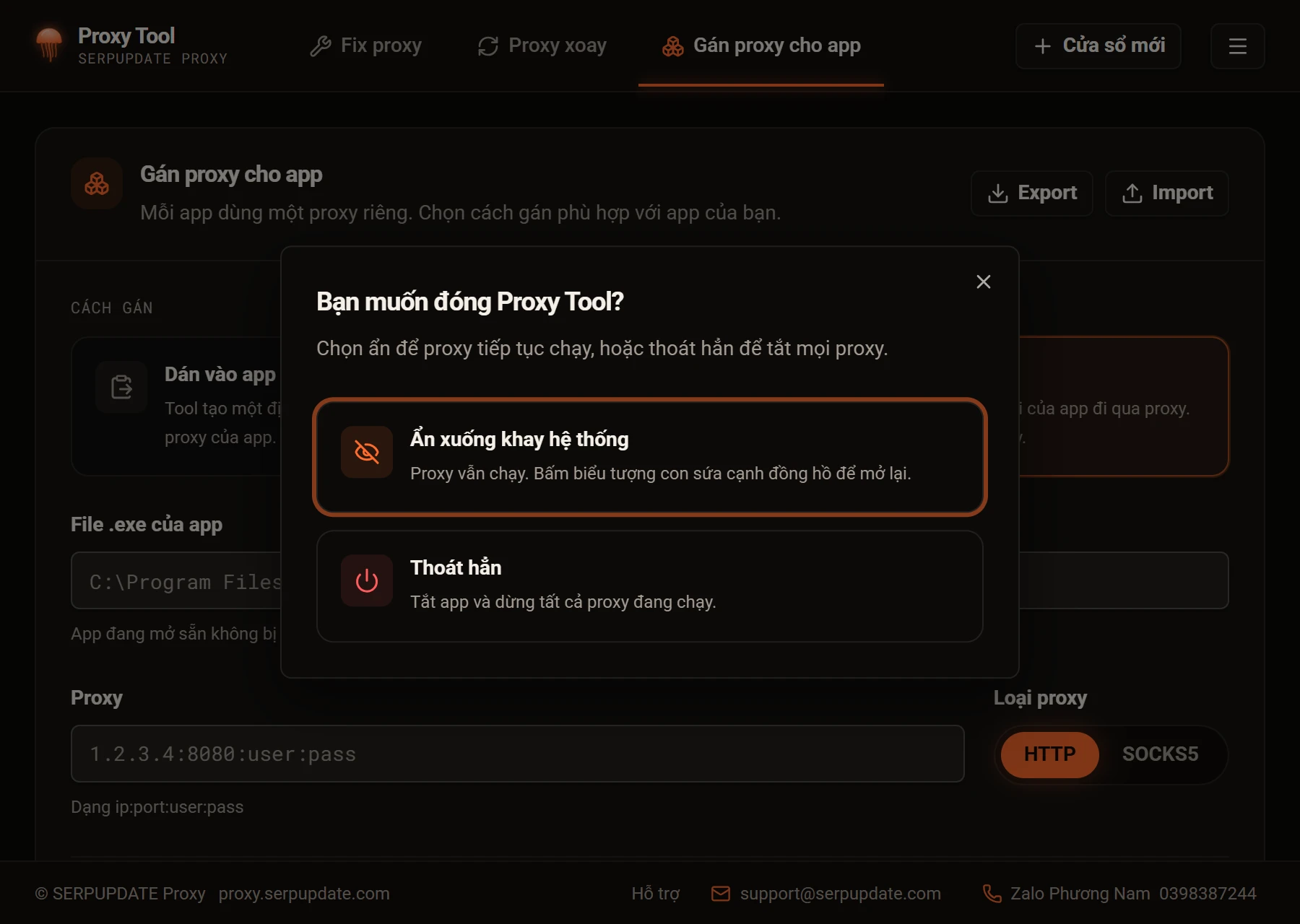
- Hide to tray ("Ẩn xuống khay hệ thống"): proxies keep running. Click the jellyfish icon by the clock to reopen.
- Quit ("Thoát hẳn"): closes the app and stops every proxy.
Frequently asked questions
Windows says "Windows protected your PC" when installing?
Click More info, then Run anyway. Windows shows this for any newly released software.
My software cannot connect through the 127.0.0.1 address?
Make sure the status says Running, then click Test or Check. If the key reports an error, check its expiry on My proxies.
I clicked Rotate IP but nothing changed?
Each key can rotate at most once every 60 seconds. Wait a moment and click again.
Does the app have to stay open?
Yes. The proxies run inside the app, so when closing choose Hide to tray rather than Quit.
Where can I get help?
Email support@serpupdate.com or message us on Zalo at the number in the app's footer, and attach the file from Export diagnostics so we can help faster.