
On this page
Getting started
How to use the SERPUPDATE Proxy dashboard
From signing up to pasting a proxy into your software takes a few minutes: top up your wallet, buy a key, copy its connection details. This page walks through every step with screenshots.
Create an account
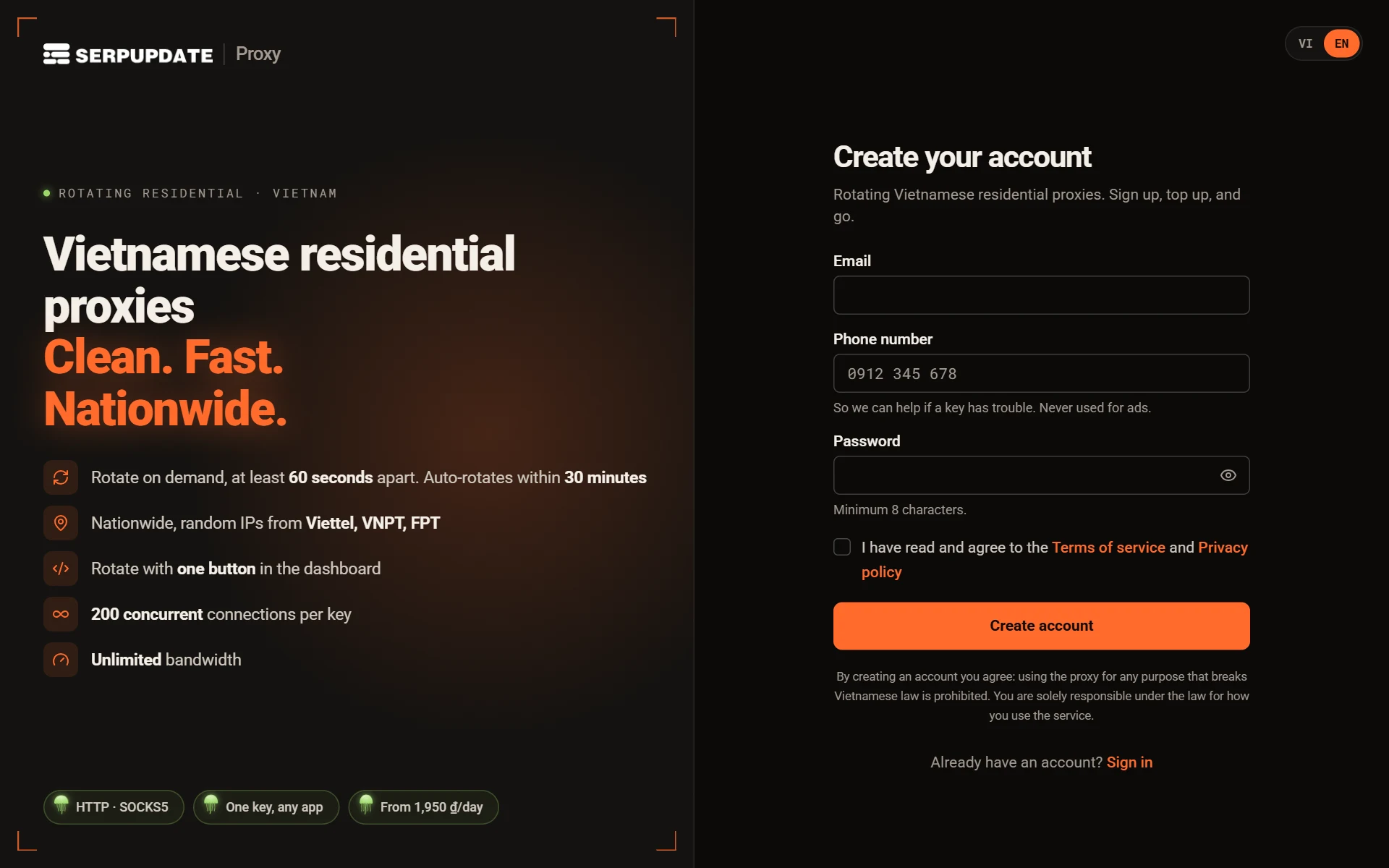
- Click Buy proxies at the top of the home page, or open Create an account.
- Enter your Email, Phone number (used only for support when a key has a problem) and a Password of at least 8 characters.
- Tick the box to agree to the Terms of service and Privacy policy, then click Create account.
- Open the email we send and click the verification link. Next time, Sign in with this email and password.
The overview page
Once signed in you land on Overview: your wallet balance, how many keys are running, keys about to expire, total IP rotations and each key's current IP.
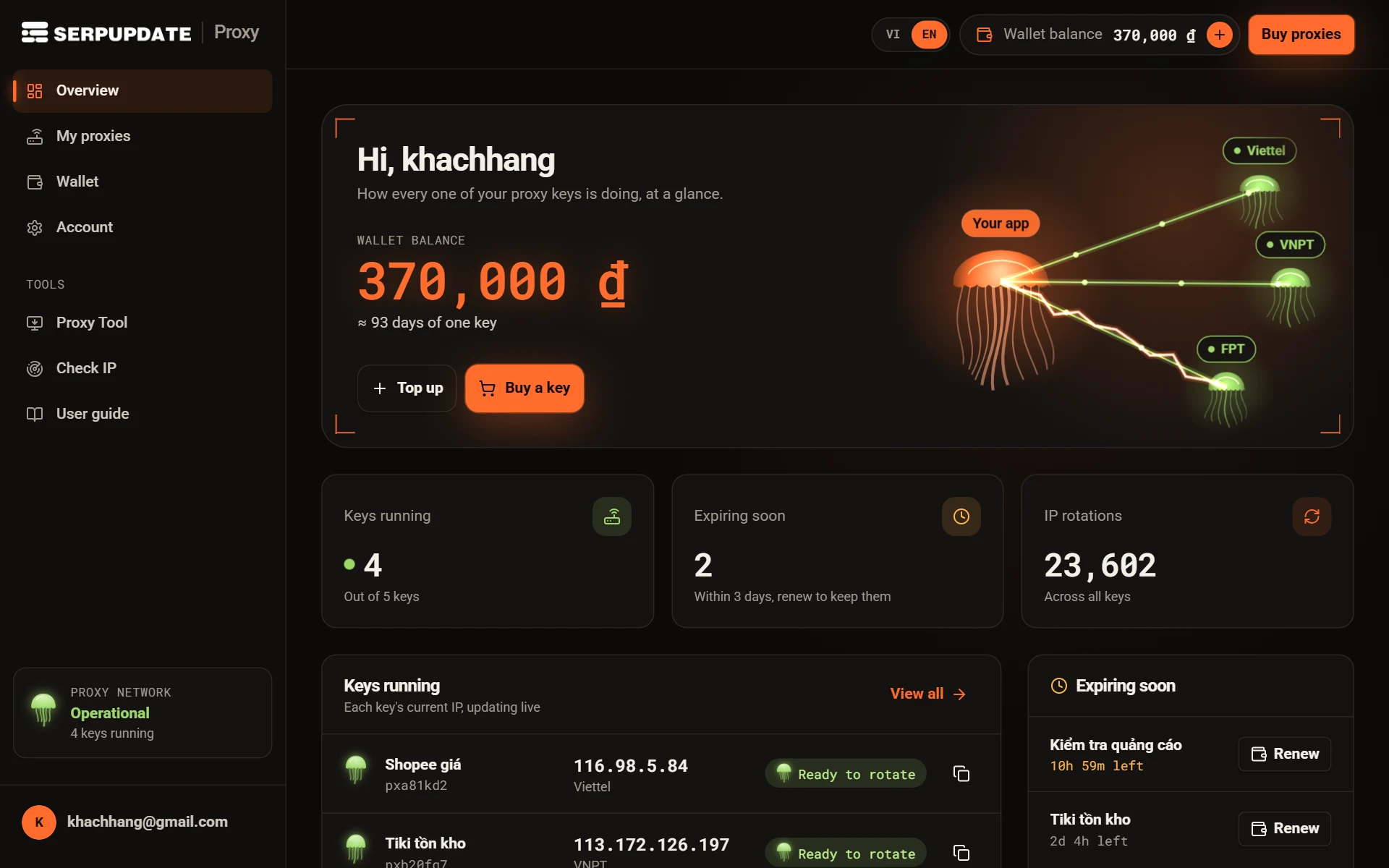
- The left menu: Overview, My proxies, Wallet, Account and the Tools group (Proxy Tool, Check IP, User guide).
- The top bar: the VI / EN language switch, your Wallet balance (the + tops it up) and Buy proxies.
- Expiring soon lists keys that expire within 3 days, each with a Renew button.
Top up your wallet
Buying and renewing keys is paid from your wallet. Open Wallet to top it up.
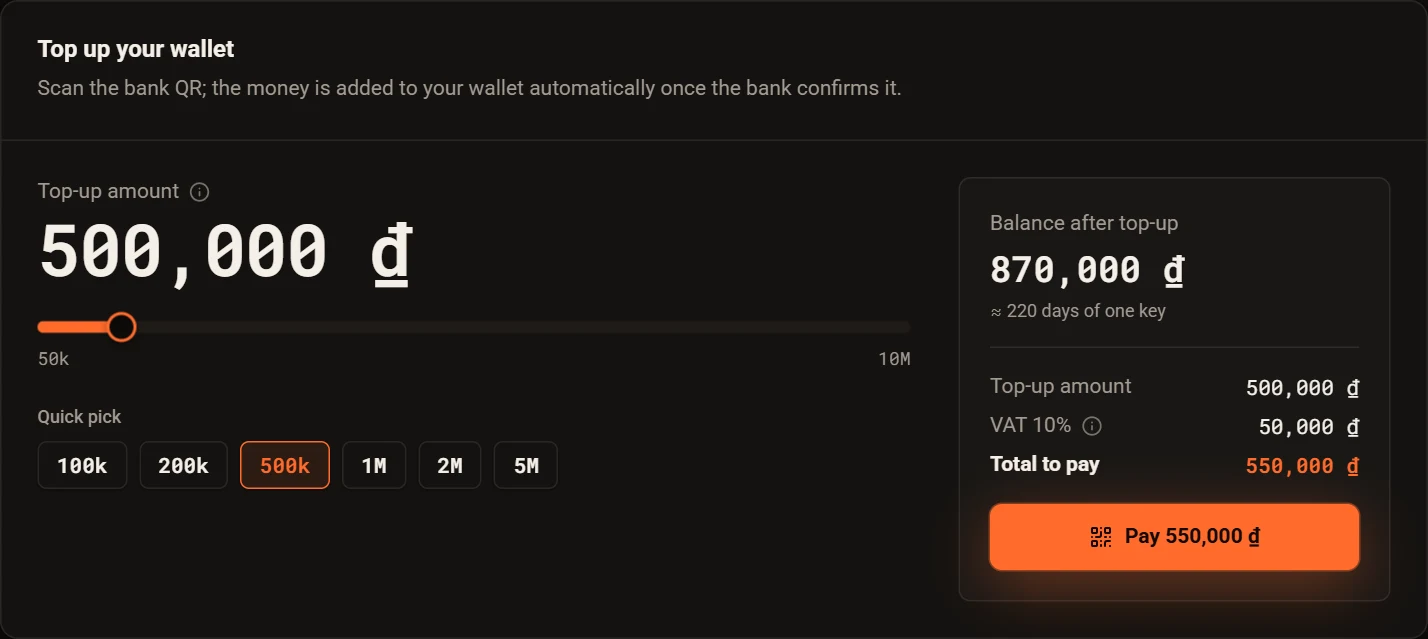
- Drag the slider or use a Quick pick (100k, 200k, 500k…). Each top-up is between 50,000 ₫ and 10,000,000 ₫.
- Check the Balance after top-up and the Total (10% VAT included), then click Pay.
- On the payment page, tick Issue a company VAT invoice if you need one, then choose Pay with bank transfer (VietQR).
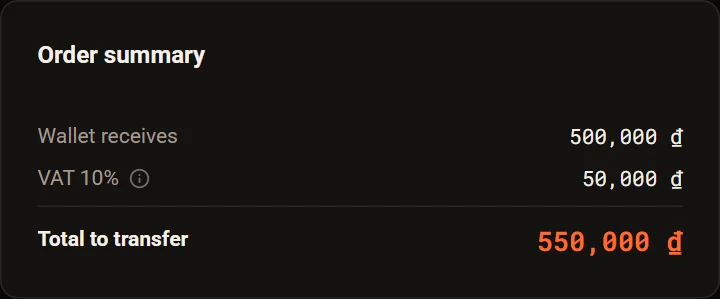
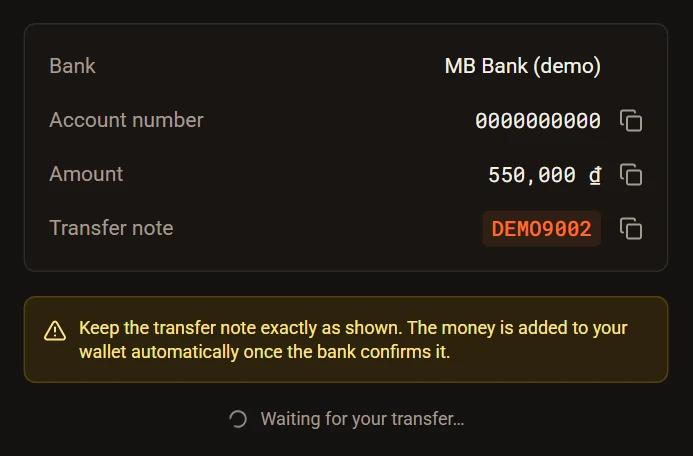
Open your banking app and scan the QR code on the page, or transfer by hand using the details below. Every line has a copy button.
Buy rotating proxy keys
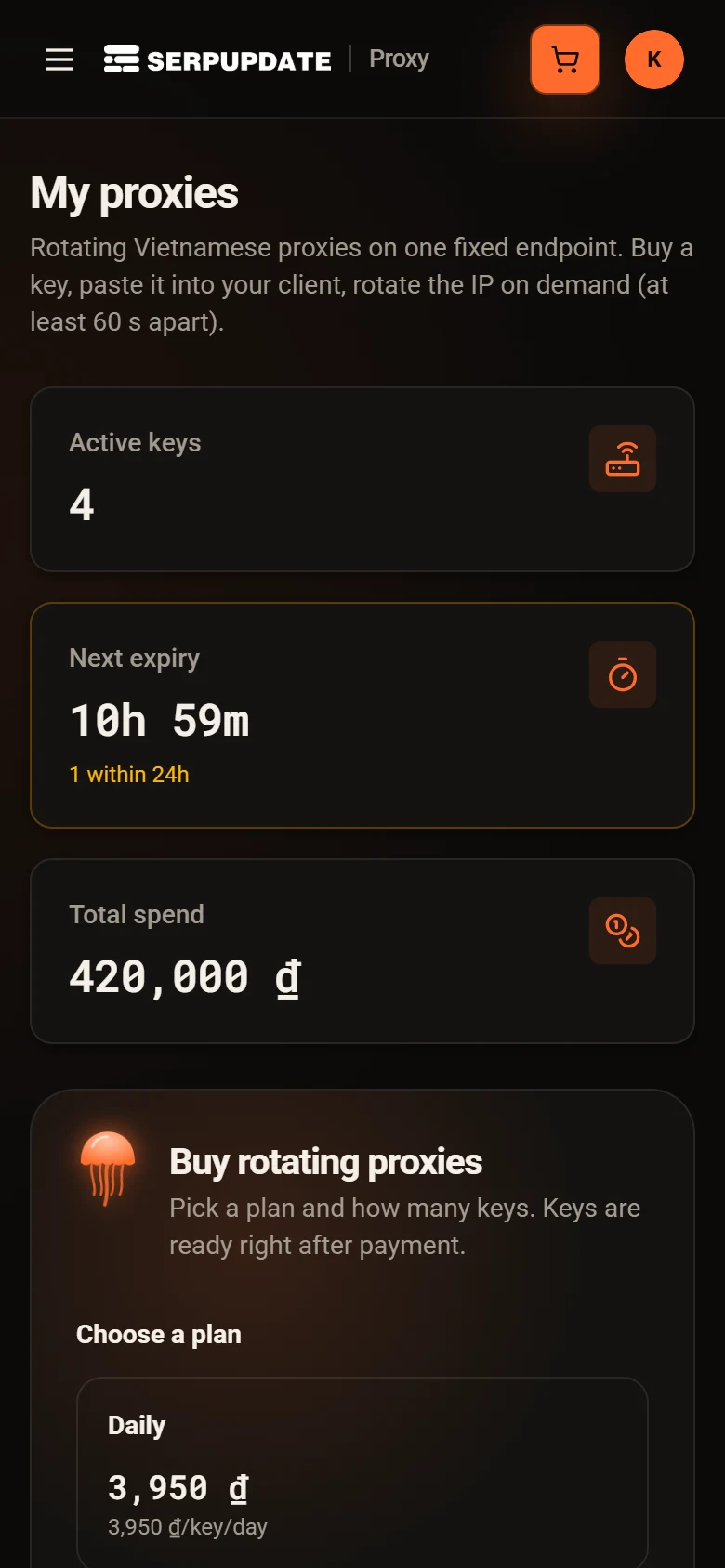
Open My proxies (or click Buy proxies). The Buy rotating proxies card is at the top of the page.
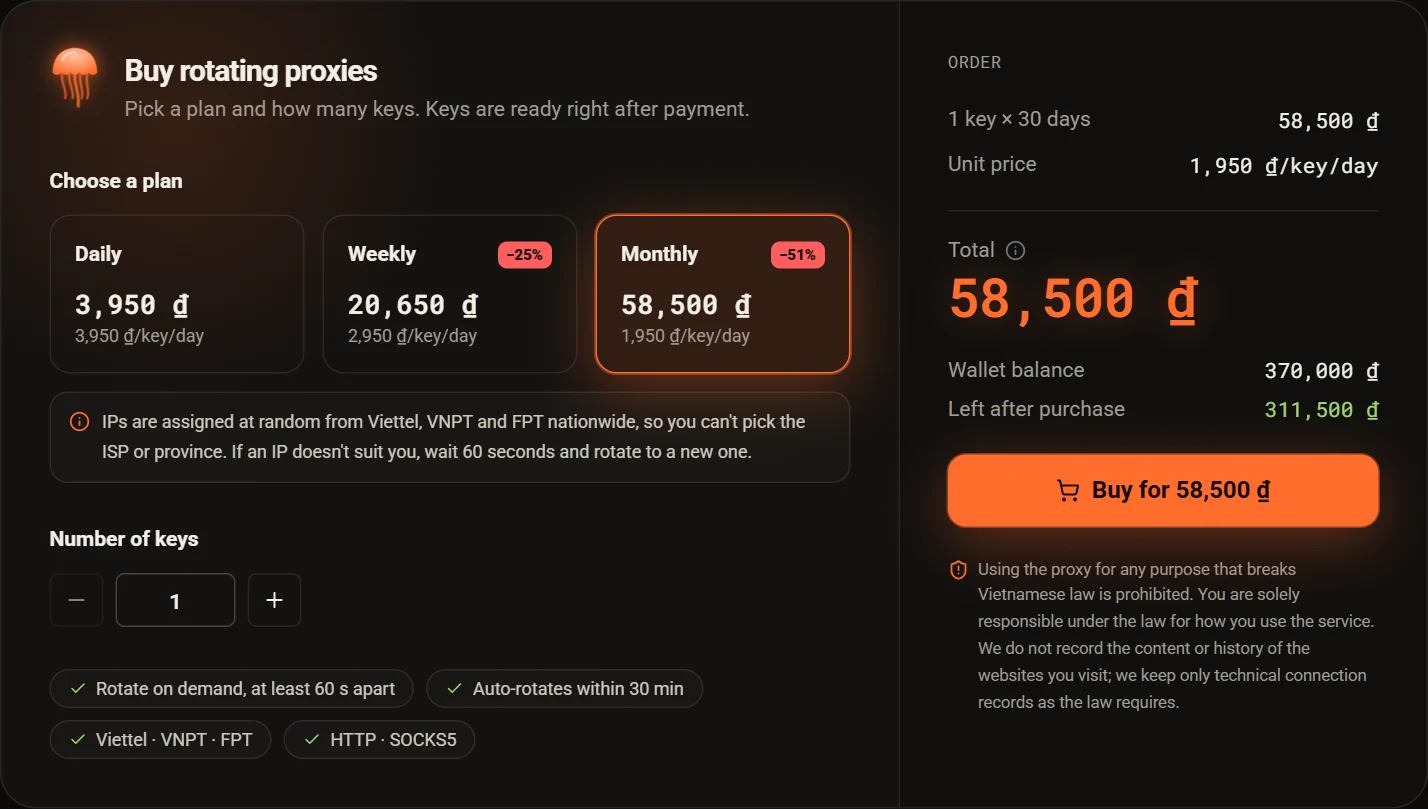
- Pick a plan: Daily, Weekly or Monthly. The longer the plan, the cheaper each day.
- Set the Number of keys with − / + (up to 50 keys per order).
- Check the Total and what is Left after purchase, then click Buy for …. It is paid from your wallet with no extra VAT, since VAT was charged on the top-up.
Your keys are ready at once. The Your new keys dialog lists them:
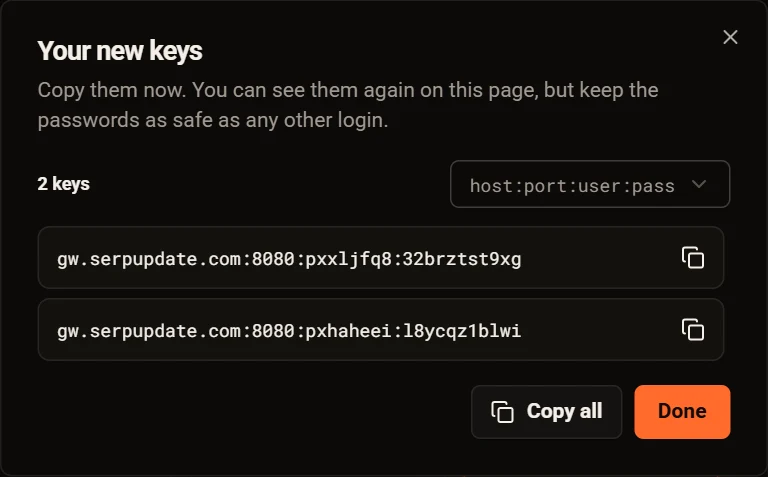
- Pick a format at the top right:
host:port:user:pass(what most software takes),http://user:pass@host:port,socks5://user:pass@host:portortoken:secret. - Click the copy icon on a line, or Copy all for the whole list.
- Closing the dialog is fine: every key stays in My proxies.
Get the connection details
Each key is a card under My keys. Click the arrow at the end of a card to open its Connection details.
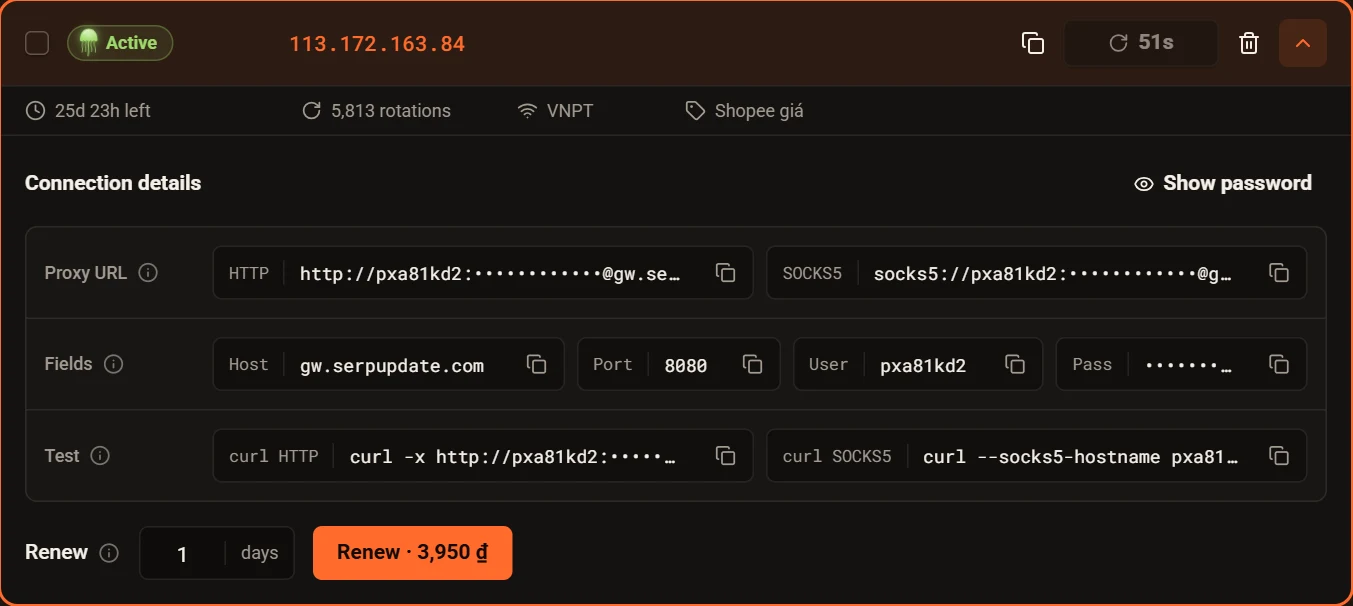
- Proxy URL: paste a whole
http://…orsocks5://…line into software that takes a proxy URL. - Fields: for software that asks for Host, Port, User and Pass separately (GoLogin, AdsPower, browsers…). Port
8080is HTTP,1080is SOCKS5. - Test:
curlcommands to run in a terminal; the answer is the proxy IP you are on. - The password is hidden; click Show password to see it. Copy buttons always copy the real password.
127.0.0.1 address. Technical details (error codes, limits) are in the connection guide.Rotate the IP
- Click Rotate IP on a key card to move to a new IP. The new IP shows on the card at once; the connection details do not change.
- Rotations are at least 60 seconds apart. Until then the button counts the seconds down (for example
35s). - If you do not rotate, the system moves the key to a new IP after at most 30 minutes.
- IPs are assigned at random from Viettel, VNPT and FPT; if one does not suit you, wait 60 seconds and rotate again.
Renew or revoke a key
- Open a key card, enter the number of days in the Renew box (the price shows on the button) and click Renew · …. It is paid from your wallet.
- An expired key can still be renewed for 7 days: click Renew right on its card.

Renewing keeps the token, password and proxy URL, so nothing needs reconfiguring. More than 7 days after expiry a key can no longer be renewed, and you buy a new one.
The bin icon is Revoke key: the key stops working at once and cannot be restored. You are always asked to confirm first.
Manage many keys at once
Tick the box at the start of each card, or Select all. The action bar appears above the list:
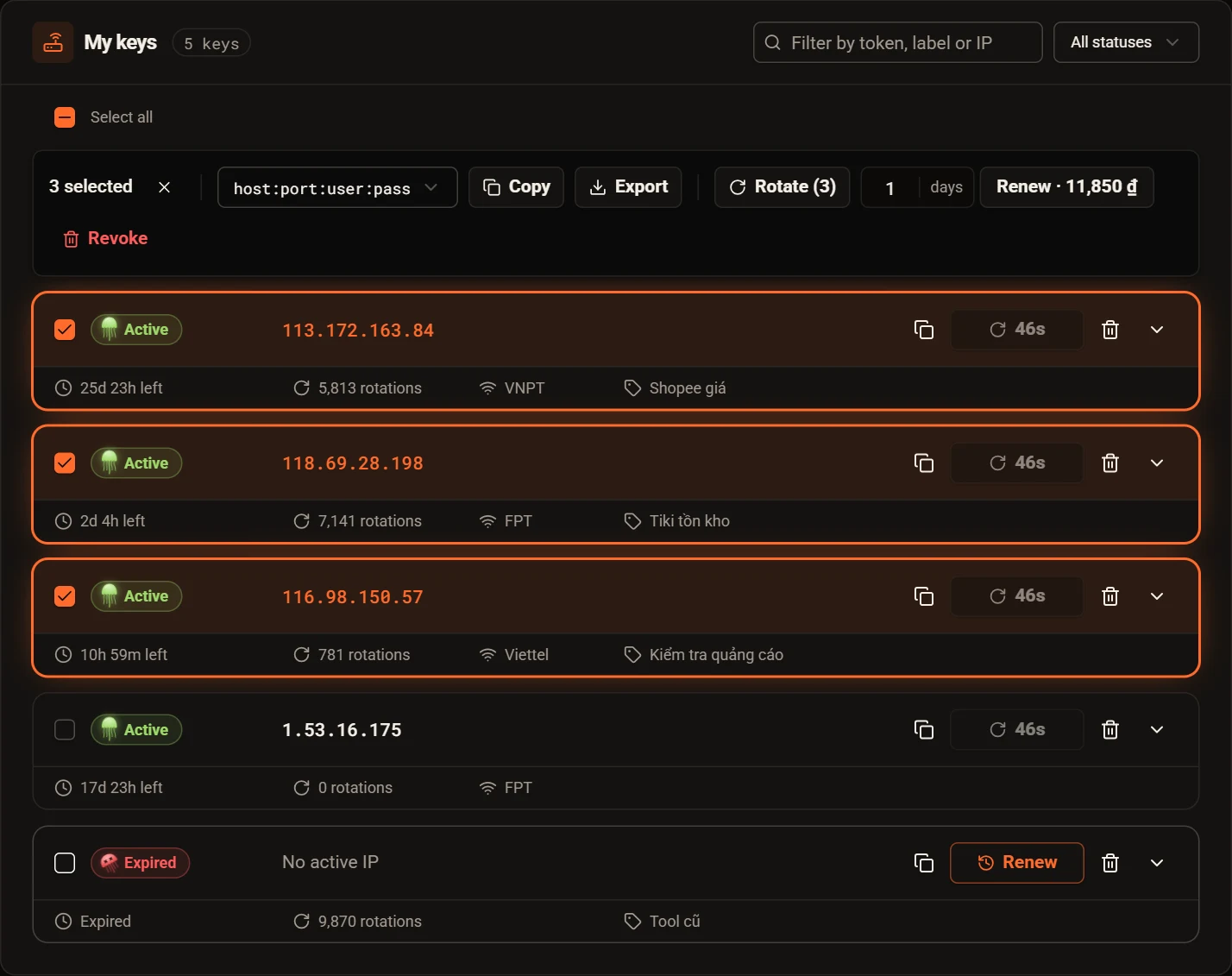
- Copy / Export: the whole selection in the format picked beside them (
host:port:user:pass, HTTP URL, SOCKS5 URL or a CSV file with key details). - Rotate IP (n): rotates every selected active key.
- Renew: enter the number of days; the total shows on the button.
- Revoke: revokes the selected keys (after confirming).
- The filter by token, label or IP box and the status picker find keys fast in a long list.
Account and VAT invoices
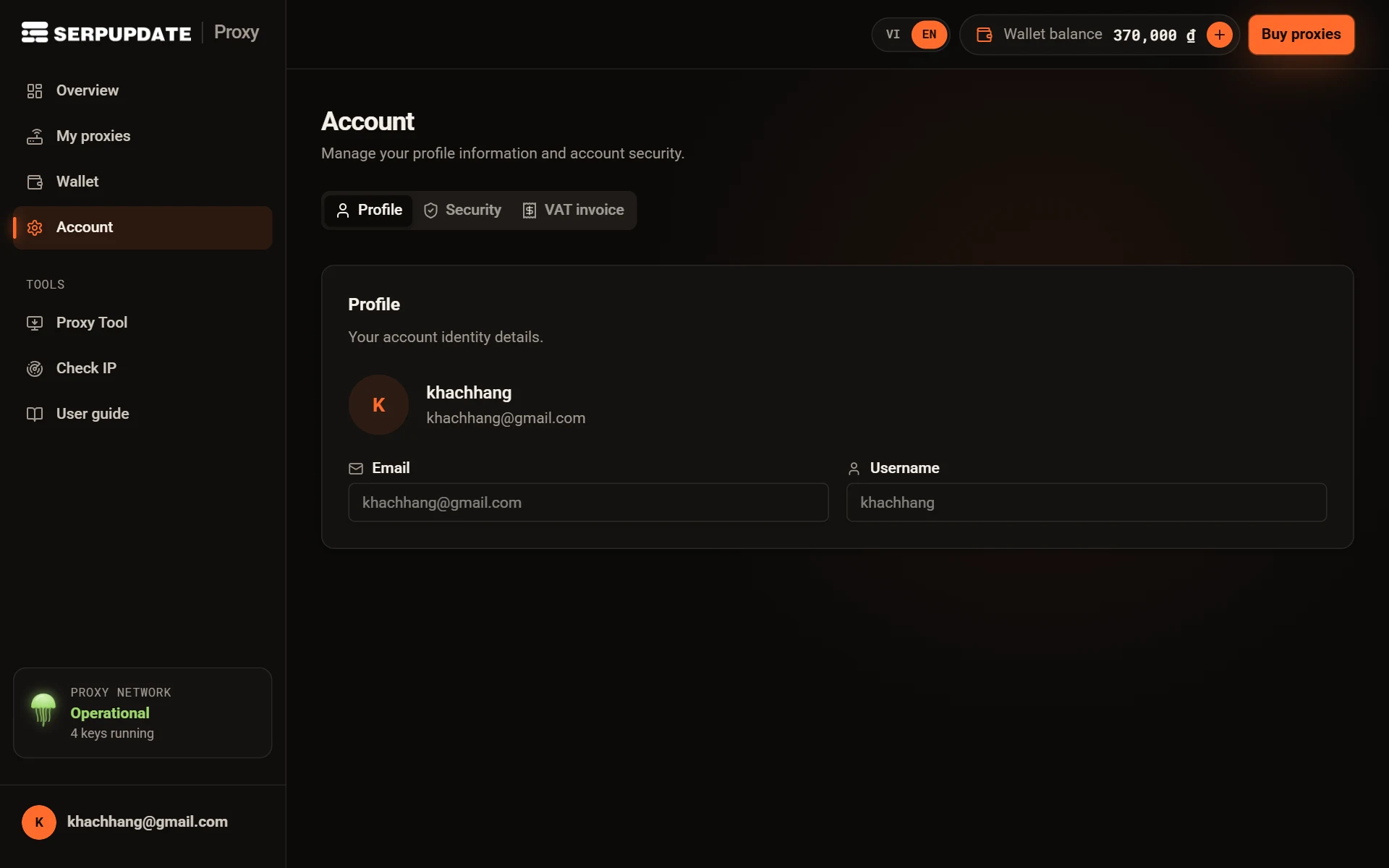
- Profile: your account's email and username.
- Security: change your password (at least 8 characters).
- VAT invoice: your company details for electronic invoices.
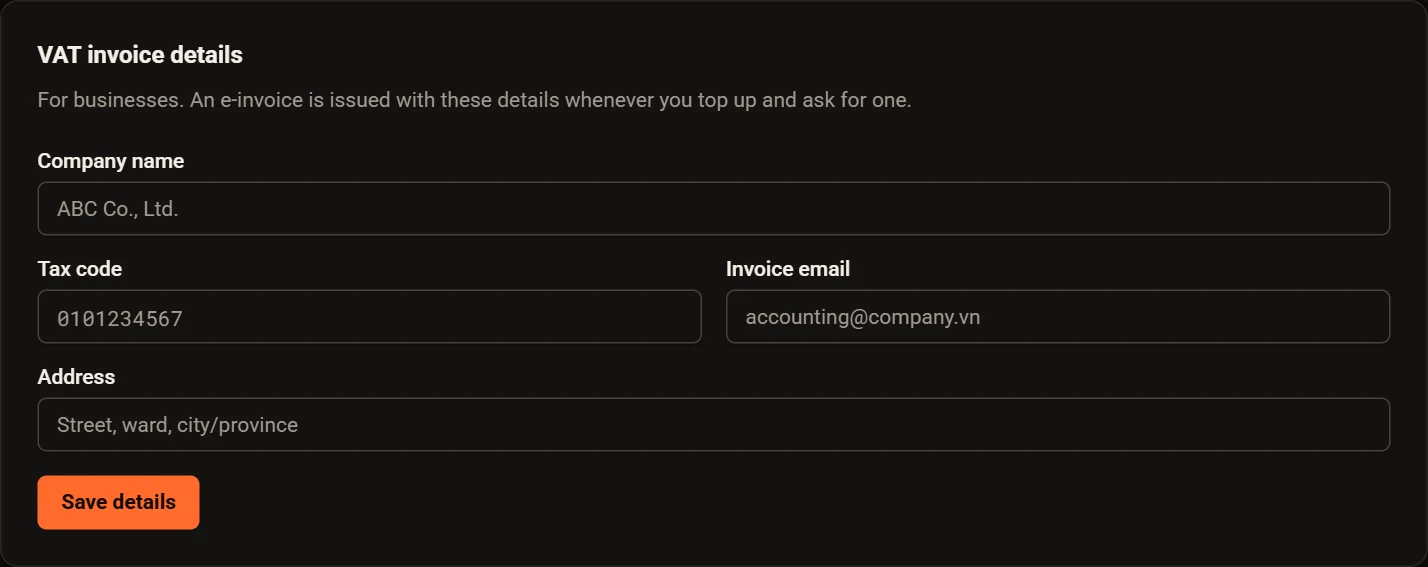
Save the details once. Each time you top up, tick Issue a company VAT invoice; the electronic invoice is emailed within 1 business day of payment.
Built-in tools
- Proxy Tool: a free Windows app to run keys and rotate the IP in one click, make passwordless proxies and give every app its own proxy. See the Proxy Tool guide.
- Check IP: see an IP's network and location and bulk-check proxies (alive or dead, exit IP, latency).
- User guide: these guides, right inside the dashboard.
Frequently asked questions
I transferred the money but my wallet has not changed?
Check the transfer note was exactly right. If nothing arrives within 30 minutes, email support@serpupdate.com with a photo of the receipt and your account email.
Is VAT added when I buy keys?
No. The 10% VAT is added once, when you top up; buying and renewing keys costs exactly the price shown.
Can I choose the network or province?
No. IPs are assigned at random from Viettel, VNPT and FPT nationwide. If one does not suit you, wait 60 seconds and rotate to another.
What happens when a key expires?
You can renew it for up to 7 days after it expires, keeping the same token, password and proxy URL. See also the refund policy and how to buy.
How many connections can one key handle?
Up to 200 concurrent connections per key, with unlimited bandwidth.